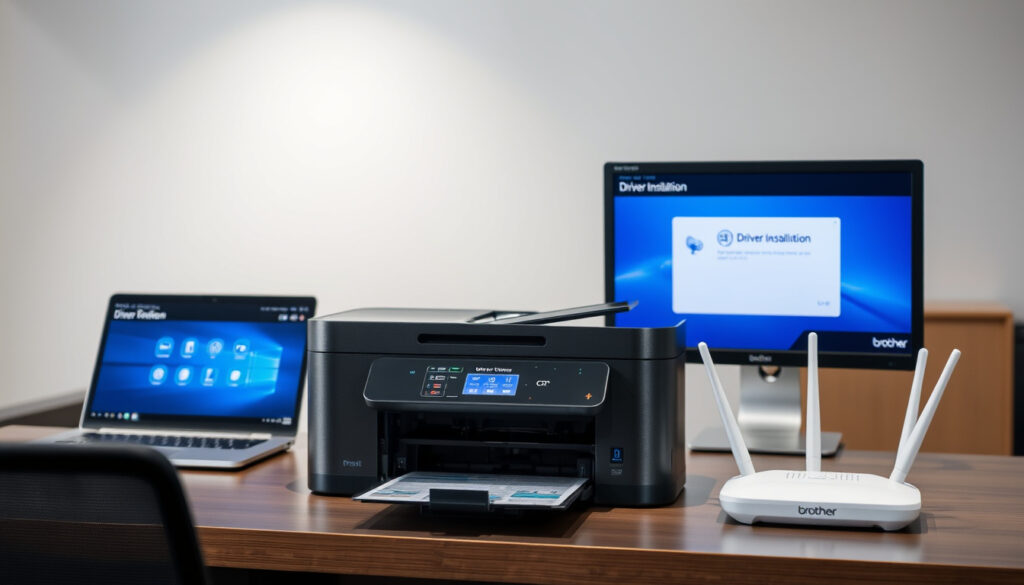
Brother DCP-L2550DW – Driver Install and WiFi Setup Guide
The Brother DCP-L2550DW is a monochrome laser all-in-one printer designed for home offices and small businesses. It combines printing, scanning, and copying capabilities with wireless connectivity and mobile printing support. The device has become a popular choice for users seeking reliable performance without complex setup requirements.
This guide covers everything from initial driver installation to routine maintenance tasks. Official sources from Brother support and product documentation provide the foundation for each section, ensuring accuracy for users configuring their devices.
How to Install Brother DCP-L2550DW Driver and Software
Wireless monochrome laser all-in-one
Duplex printing and scanning
Fast setup for home/small office
Compatible with iPrint&Scan app
Before connecting the printer to your network, you must install the appropriate drivers on your computer. The Windows driver package includes all necessary software components for printing and scanning functionality.
The installation process follows these essential steps: download the Full Driver and Software Package from the Brother support website, run the installer, and follow the on-screen prompts. The driver package establishes communication between your computer and the printer, enabling full access to all device features.
The official driver package from Brother support includes scanning utilities that may not install automatically with basic plug-and-play drivers.
Users should locate their operating system version before downloading. Brother provides separate driver packages for Windows and macOS, each optimized for specific system configurations. The support downloads page organizes drivers by operating system version for straightforward selection.
- Download the Full Driver and Software Package from the Brother support website
- Run the installer and accept the license agreement
- Connect the printer via USB when prompted during installation
- Follow on-screen instructions to complete the setup
- Restart your computer to finalize driver configuration
| Feature | Details |
|---|---|
| Print Speed | Up to 36 ppm |
| Connectivity | WiFi, USB |
| Toner Yield | Standard 1200 pages |
| Drum Life | 12,000 pages |
| Duplex Printing | Automatic |
| Scanner Resolution | Up to 1200 x 1200 dpi |
Brother DCP-L2550DW WiFi Setup Guide
WPS Quick Connection Method
The WPS method offers the fastest way to connect the DCP-L2550DW to your wireless network. This approach works with compatible routers that support Wi-Fi Protected Setup functionality.
To begin, press the Wi-Fi button on the printer’s control panel. The display will prompt you to confirm the setup action. Next, locate the WPS button on your router and hold it for approximately three seconds. The printer typically establishes a connection within two minutes.
The status indicator on the printer confirms successful wireless configuration. A solid wireless light indicates the printer has joined your network and is ready for printing tasks.
Standard Wireless Network Setup
For manual network configuration, the printer includes a Setup Wizard accessible through the control panel menu. This method provides greater control over connection parameters and works with all wireless routers regardless of WPS support.
Navigate through the menu by pressing Menu or Settings, selecting Network, then WLAN, and finally the Setup Wizard option. The wizard displays available wireless networks within range of the printer.
- Turn on the printer and access the Menu or Settings
- Navigate to Network, then select WLAN
- Choose the Setup Wizard and enable WLAN when prompted
- Select your network SSID from the displayed list using arrow keys
- Enter your network password and confirm with Yes
If your router broadcasts in stealth mode or uses a hidden SSID, you must manually enter the network name and security key during the setup process.
Wi-Fi Direct Connection
Wi-Fi Direct allows direct communication between the printer and mobile devices without an intermediate router. This feature proves useful when a wireless network is unavailable or when guests need to print quickly.
To activate Wi-Fi Direct, access the control panel and navigate to Network, then Wi-Fi Direct, and select Manual. The printer displays a network name and temporary password that remains active for two minutes. Select this network on your mobile device and enter the displayed password to connect.
Android devices including Samsung Galaxy and Kindle Fire tablets, as well as iOS devices such as iPhone and iPad, support direct printing through this connection method.
How to Scan to PC with Brother DCP-L2550DW
Using iPrint&Scan App
The Brother iPrint&Scan application enables wireless scanning from the DCP-L2550DW to mobile devices. This utility connects compatible smartphones and tablets directly to the printer over your local network or via Wi-Fi Direct.
After installing the app from your device’s app store, select the DCP-L2550DW from the available device list. The interface provides options for scanning documents directly to your mobile device or cloud storage services. Users can adjust scan quality, file format, and destination settings before initiating each scan.
Scanning to a Computer
For scanning to a connected computer, ensure the driver software remains installed and the printer and computer share the same network. The Brother Scan workspace application provides scanning controls when opened on your computer.
Place your document on the automatic document feeder or flatbed scanner, then initiate the scan from the printer control panel or the scanning software on your computer. The scanned image transfers directly to your designated folder or application.
Brother DCP-L2550DW Manual and User Guide
The official Brother manual provides comprehensive documentation for all DCP-L2550DW features. Users can access both HTML-based online guides and downloadable PDF versions covering installation, operation, maintenance, and troubleshooting procedures. For more information on common issues and owner experiences, you can refer to the VW T-Roc tyyppiviat ja kokemukset.
Brother maintains updated documentation on their support portal, with manuals organized by product model and operating system. The support center also offers FAQs addressing common questions about setup, connectivity, and error resolution.
For additional visual guidance, Brother provides a dedicated YouTube playlist covering unboxing, installation, and setup procedures for the DCP-L2550DW. These video resources complement the written documentation with step-by-step demonstrations.
Replacing Toner and Drum Unit on Brother DCP-L2550DW
The DCP-L2550DW uses separate toner cartridge and imaging drum components. Each consumable has a distinct replacement interval based on page coverage and print volume. Understanding these components helps maintain optimal print quality throughout the device lifecycle.
Standard toner cartridges for this model yield approximately 1,200 pages at standard coverage. The imaging drum unit lasts significantly longer, with Brother rating it for approximately 12,000 pages under normal usage conditions.
The toner cartridge and drum unit are separate components. Replacing the toner does not require replacing the drum, and vice versa. The printer display indicates which component requires attention.
Detailed replacement procedures for both components are available in the printer user manual. The manual provides step-by-step instructions with diagrams showing the correct installation position for each consumable. Brother support representatives can assist with specific questions about maintenance procedures.
Initial Setup Timeline
The complete setup process from unboxing to first print follows a logical sequence. Most users complete initial configuration within 30 to 45 minutes when following the recommended procedure.
- Unbox the printer and remove all protective materials
- Install the toner cartridge and imaging drum unit
- Connect to power and turn on the printer
- Install the driver software on your computer
- Connect the printer to your wireless network
- Print a test page to verify functionality
- Configure scanning software if needed
Confirmed Specifications and Reported Limitations
| Aspect | Status | Details |
|---|---|---|
| Print Speed | Confirmed | Up to 36 pages per minute |
| Wireless Connectivity | Confirmed | WiFi 802.11b/g/n supported |
| Mobile Printing | Confirmed | iPrint&Scan app compatible |
| WiFi Reliability | Variable | Some users report connectivity drops |
| Toner Yield | Confirmed | Standard cartridge approximately 1,200 pages |
| Drum Life | Confirmed | Approximately 12,000 pages |
Official Brother specifications confirm the print speed, wireless standards, and consumable yields listed above. User reports indicate that WiFi performance may vary based on network conditions, router compatibility, and environmental factors. Brother support resources address common connectivity troubleshooting scenarios.
Position in the Brother Product Line
The DCP-L2550DW occupies the mid-range segment of Brother’s monochrome laser all-in-one lineup. The model includes duplex printing and scanning capabilities as standard features, differentiating it from entry-level alternatives that may require manual duplex operations.
Compared to the base DCP-L2520DW variant, the L2550DW adds automatic document feeder capacity and faster print specifications. Small office environments benefit particularly from the combination of wireless connectivity and the 50-sheet automatic document feeder for multi-page scanning and copying tasks.
Sources and Official Information
Brother support documentation serves as the primary reference for setup procedures and specifications. The official support website provides downloadable drivers, manuals, and FAQs organized by product model.
YouTube tutorials from Brother’s official channel offer visual demonstrations of setup and configuration processes. These resources complement the written documentation with practical guidance for users who prefer video-based instructions.
Summary
The Brother DCP-L2550DW delivers solid monochrome printing performance with wireless flexibility for home and small office environments. Driver installation, network configuration, and mobile printing setup follow straightforward procedures documented by Brother support. Regular maintenance involving toner and drum replacement maintains print quality throughout the device operational life.
Users seeking to expand their home office capabilities may find value in reviewing Cloud Storage Free Plans – Top Options Compared for efficient document backup solutions compatible with scanned files. Alternatively, those interested in creative outlets during breaks might explore Lego Sets for Adults – Top Picks and Prices for engaging building projects.
What toner cartridge does the Brother DCP-L2550DW use?
The DCP-L2550DW uses Brother TN-760 standard yield toner cartridges yielding approximately 1,200 pages. High-yield TN-760XL cartridges offering extended page counts are also compatible with this model.
How do I connect the printer to WiFi without WPS?
Access the Setup Wizard through the control panel menu by navigating to Network, then WLAN. Select your network SSID from the available list and enter your wireless password to establish the connection.
Can I print from my phone using the DCP-L2550DW?
Yes, the printer supports mobile printing through the Brother iPrint&Scan app available for Android and iOS devices. You can connect via WiFi or Wi-Fi Direct for wireless printing and scanning.
How often should I replace the drum unit?
Brother rates the imaging drum for approximately 12,000 pages under standard usage conditions. The actual lifespan varies based on print coverage and page volume. The printer display alerts you when drum replacement becomes necessary.
Where can I download the printer drivers?
The Full Driver and Software Package is available from the official Brother support website Downloads section. Select your operating system to access the appropriate driver package for your computer.
Does the DCP-L2550DW support double-sided printing?
Yes, automatic duplex printing is a standard feature. The printer can print on both sides of paper without manual intervention, reducing paper consumption for multi-page documents.
More related posts
 OPP Breaking News Today: Ontario Police Updates & Facts
 James Spader Movies and TV Shows – Complete Filmography and Best Roles
 La Personnelle Assurance Auto: Quotes, Contact, Reviews
 100 CAD to INR: Exchange Rate, Forecast & Living Costs
 Daniel Cormier: Record, Net Worth, Retirement, and Personal Life
 Ronald Reagan: Biography, Presidency, and Alzheimer’s Disease
 Amanda Batula: Weight Loss, Marriage and Summer House Exit
 Patrick Roy: Career, Coaching, and Islanders Firing
